CAMS Capital Gains Statement: How To Get It For Tax Filing
Shlok Sobti
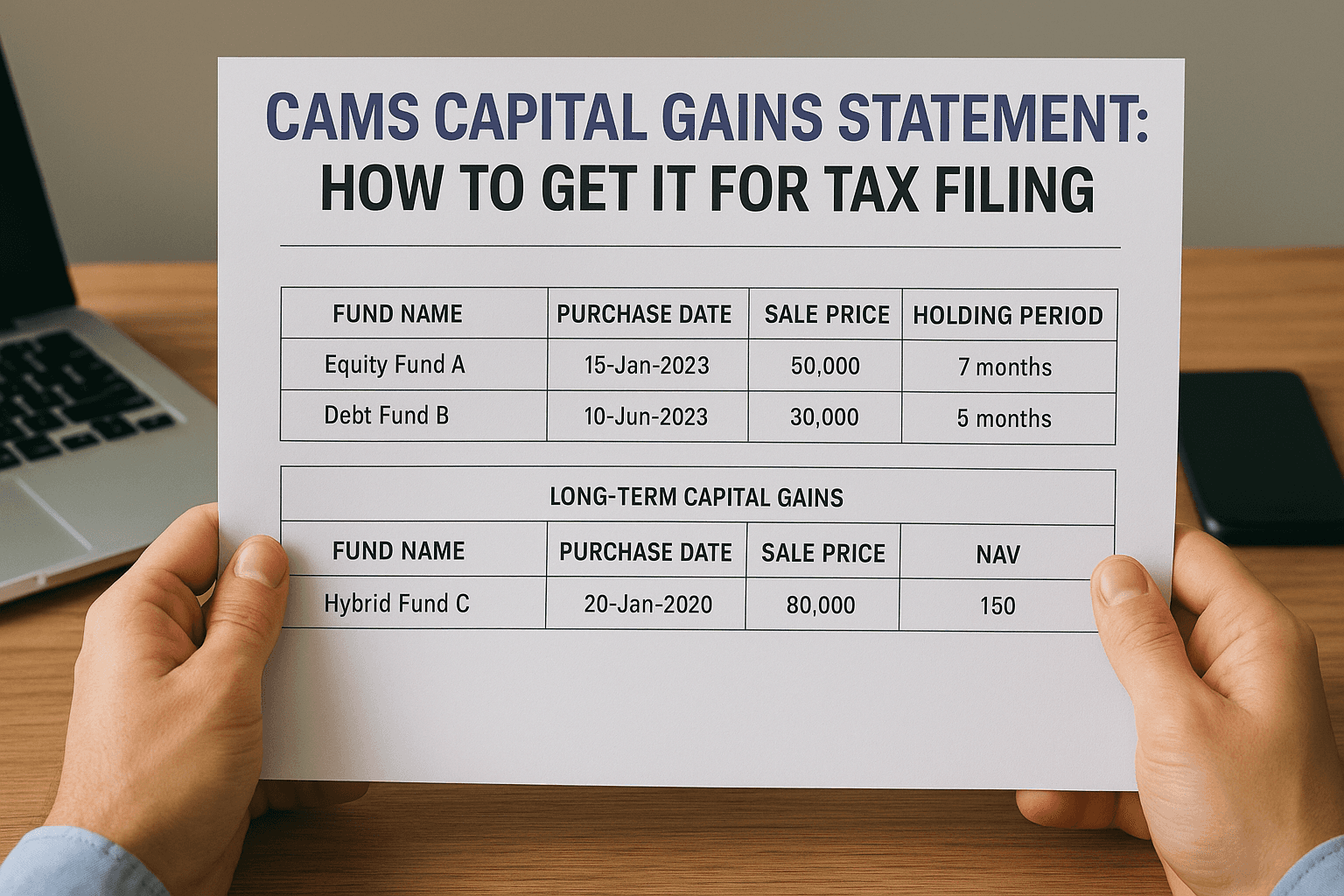
CAMS Capital Gains Statement: How To Get It For Tax Filing
Tax season brings paperwork, and if you've invested in mutual funds, you'll need your CAMS capital gains statement to file accurately. This document summarizes your realized gains and losses from mutual fund redemptions, making it essential for computing your tax liability.
The good news? Getting this statement is straightforward once you know where to look. CAMS (Computer Age Management Services) handles records for most mutual fund houses in India, and they provide a simple online portal to download your capital gains report directly.
This guide walks you through the exact steps to download your statement, whether you're filing taxes yourself or handing it off to your CA. At Invsify, we help investors track portfolios and optimize wealth through AI-powered advisory, and accurate tax documentation is a key part of smart financial management.
What the CAMS capital gains statement shows
Your CAMS capital gains statement contains a complete breakdown of every mutual fund redemption you made during the financial year. This document calculates your gains or losses using the FIFO (First In, First Out) method, which means your oldest units get sold first. You'll see the purchase date, sale date, holding period, and the resulting capital gain or loss for each transaction.
The statement separates your transactions into short-term and long-term categories automatically. For equity funds, holdings under 12 months count as short-term, while debt funds need 36 months to qualify as long-term. Tax rates differ significantly between these categories, so this classification directly impacts your final tax liability.
Each transaction shows the exact computation method CAMS used, letting you or your CA verify the figures before filing.
Transaction details and basis of calculation
You'll find your purchase price (also called acquisition cost), sale price, and the absolute gain or loss for each redemption. CAMS also includes the quantity of units sold and the NAV (Net Asset Value) on both purchase and sale dates. If you bought units through a Systematic Investment Plan (SIP), the statement breaks down each SIP installment separately because each has a different purchase date and price.
The statement shows this data in a table format:
Folio Number | Scheme Name | Purchase Date | Sale Date | Units | Purchase NAV | Sale NAV | Gain/Loss | Type |
|---|---|---|---|---|---|---|---|---|
123456 | ABC Equity Fund | 15-Apr-2024 | 10-Jan-2025 | 50.000 | ₹45.20 | ₹52.30 | ₹355.00 | STCG |
123456 | XYZ Debt Fund | 12-Mar-2022 | 10-Jan-2025 | 100.000 | ₹28.50 | ₹32.10 | ₹360.00 | LTCG |
Separate sections for equity and debt funds
CAMS organizes your statement by fund category and tax treatment. Equity-oriented funds appear in one section with their specific indexation rules, while debt funds sit in another with different calculation methods. Hybrid funds get classified based on their equity exposure, following the same 65% equity rule that determines their tax treatment.
Within each category, the statement totals your short-term capital gains (STCG) and long-term capital gains (LTCG) separately. You'll see subtotals at the end of each fund type and a grand total at the bottom. These final figures map directly to the schedules in your ITR form, making it simple to transfer the numbers when you file your return.
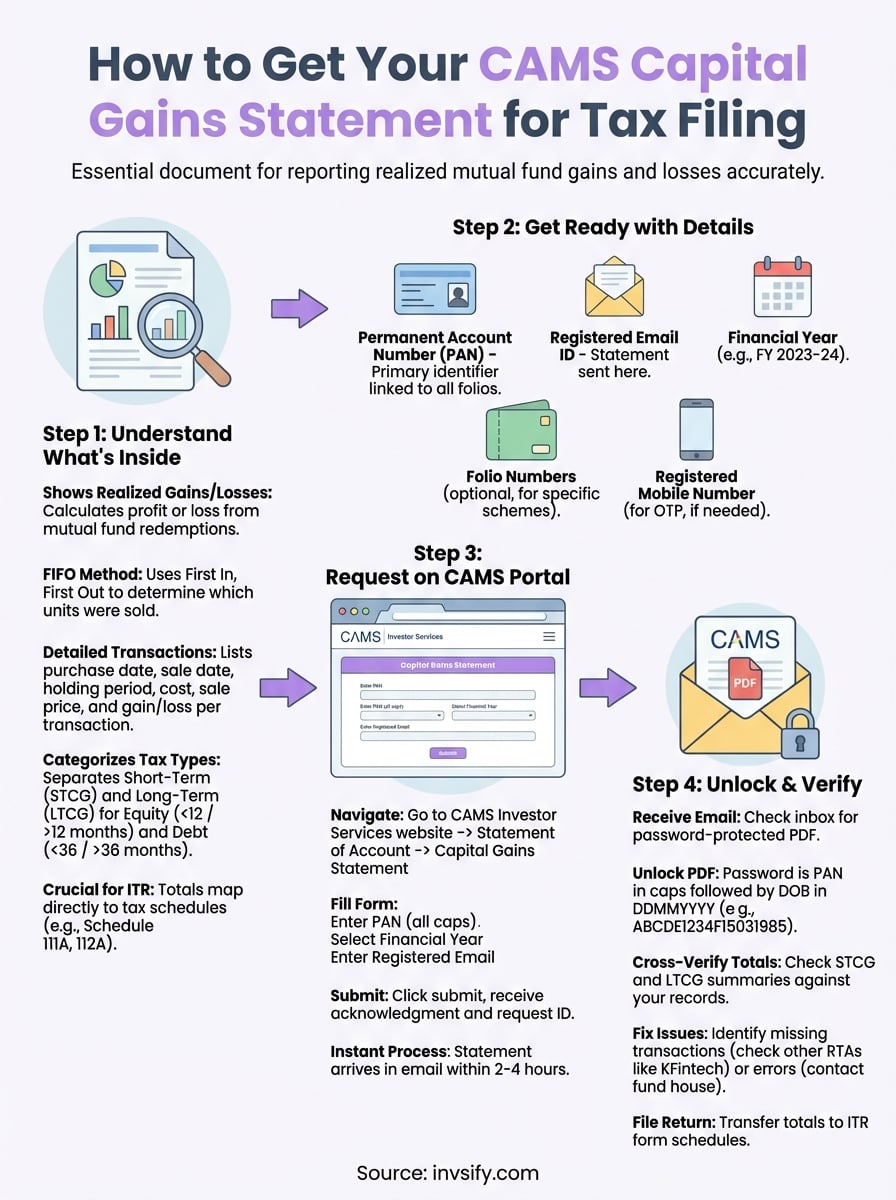
Step 1. Get ready with the right details
Before you download your cams capital gains statement, gather a few essential pieces of information. CAMS requires specific details to verify your identity and pull the correct transaction records from their system. Having these ready saves time and prevents errors when you're filling out the request form.
You'll need your PAN (Permanent Account Number) as your primary identifier. CAMS links all your mutual fund folios to this number, so it's mandatory for generating the statement. Make sure you enter the exact PAN registered with your fund houses, since any mismatch will block your request.
Your folio numbers and email ID
Keep your folio numbers handy if you want to download statements for specific funds. Each mutual fund scheme assigns you a unique folio number, and you can request statements for individual folios or all folios linked to your PAN at once. Your registered email ID matters because CAMS sends the statement to this address within a few hours of your request.
If you've changed your email recently, update it with your fund house first or the statement won't reach you.
Check that your email matches the one on record by logging into your fund house's investor portal. Most rejections happen because of email mismatches or PAN entry errors.
Financial year and mobile number
Select the correct financial year for which you need the capital gains data. CAMS generates statements for completed financial years (April to March), and you can request data going back several years if needed. Your registered mobile number also helps if CAMS needs to send an OTP for verification during the download process.
Write down these details before you start:
PAN number (as per your mutual fund records)
Email ID registered with CAMS
Financial year (e.g., FY 2023-24)
Folio numbers (optional, for specific schemes)
Mobile number (if registered)
Step 2. Request the statement on the CAMS portal
Open your browser and head to the CAMS investor services website to start your download. The portal gives you direct access to your capital gains statement without requiring any login credentials. CAMS designed this service to work for all investors, whether you hold one folio or dozens across different fund houses.
Navigate to the CAMS investor services page
Type "CAMS capital gains statement" in your search bar or visit the CAMS investor services section directly. Look for the "Capital Gains Statement" option under the Statement of Account menu. The page loads a simple form that asks for your basic details and the financial year you need.
CAMS processes requests instantly, so you'll receive the download link in your email within 2 to 4 hours.
Click on the capital gains statement link to open the request form. Your browser needs to be updated to the latest version because older browsers sometimes fail to load the CAMS portal correctly.
Fill in the request form
Enter your PAN number in the first field exactly as it appears on your PAN card, using all capital letters. Select the financial year from the dropdown menu, choosing the year for which you need the tax data. Most investors pick the previous financial year during filing season.
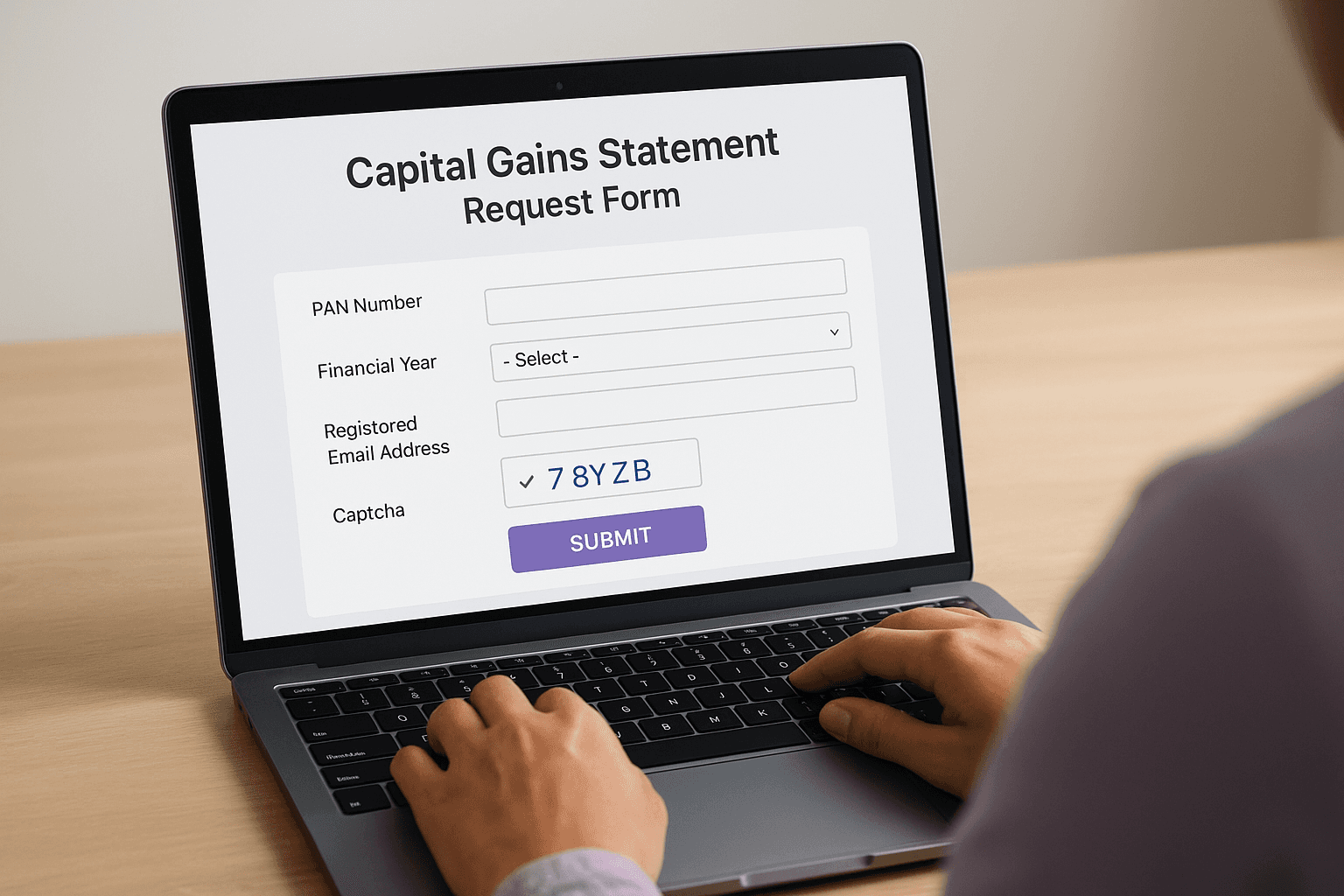
Type your registered email address in the email field. CAMS sends the statement as a password-protected attachment to this email, so double-check for typos. Add your folio number if you want statements for specific schemes, or leave this field blank to get a consolidated report covering all your CAMS-linked mutual funds.
Complete the captcha verification and click the submit button. CAMS displays a confirmation message showing your request ID. Save this request ID in case you need to follow up on your statement download. The portal sends an acknowledgment email immediately, followed by the actual statement within a few hours.
Step 3. Open the encrypted file and verify totals
Check your email inbox for the CAMS capital gains statement attachment, which arrives as a password-protected PDF file. CAMS encrypts every statement to protect your financial data, so you'll need your credentials ready before you can view the document. The file typically arrives within 2 to 4 hours of submitting your request, though heavy traffic during tax season might add a slight delay.
Unlock the PDF with your credentials
Download the PDF attachment from your email and open it with any standard PDF reader. The system prompts you for a password immediately. Your password combines your PAN number with your date of birth in a specific format. Enter your PAN in capital letters followed by your date of birth in DDMMYYYY format, with no spaces or special characters between them.

For example, if your PAN is ABCDE1234F and your date of birth is 15th March 1985, your password looks like this:
Type the password exactly as shown, maintaining the capital letters for your PAN. The PDF opens immediately if you enter the correct combination. Most access issues happen because of incorrect date formatting or lowercase letters in the PAN.
Save the unlocked PDF to a secure folder on your device since you'll reference it multiple times during tax filing.
Check your capital gains totals
Scroll to the summary section at the end of your statement where CAMS displays the total figures for each category. You'll see separate totals for short-term capital gains from equity funds, long-term capital gains from equity funds, and similar breakdowns for debt funds. Cross-verify these totals against your own records of redemptions during the year.
Look at the transaction count shown in each category. If you redeemed units from 5 different equity funds, your statement should list all 5 transactions in the equity section. Missing transactions indicate incomplete data, which you'll need to resolve before filing. Compare the final STCG and LTCG amounts with any preliminary calculations your fund house might have shared in their quarterly statements.
Fix common issues and gaps in the statement
Your CAMS capital gains statement might show incomplete data or calculation errors that need fixing before you file your taxes. Missing transactions happen when you made redemptions through fund houses not serviced by CAMS, or when recent transactions haven't updated in their system yet. You'll need to address these gaps to ensure your tax filing reflects accurate numbers.
Track down missing transactions
Compare your bank statements and mutual fund transaction confirmations against what appears in your CAMS report. If you redeemed units from schemes handled by KFintech (formerly Karvy) or other RTAs, those transactions won't appear in your CAMS statement at all. Download separate capital gains statements from each RTA's portal to capture the complete picture of your redemptions.
Check your email inbox for transaction confirmation messages from your fund houses. Each redemption triggers an immediate confirmation that shows the units sold, NAV, and date. Match these details line by line with your CAMS statement to identify any missing entries.
Fund houses typically update CAMS records within 48 hours of a transaction, but technical delays occasionally create gaps in the data.
Request corrections from your fund house
Contact your fund house's investor services team directly if you spot calculation errors or missing recent transactions. Send them your folio number, PAN, and the specific transaction details that appear incorrect. Most fund houses respond within 3 to 5 business days and update the records in CAMS if they confirm the error.
For systematic errors affecting multiple transactions, file a formal complaint through the fund house's grievance portal. Keep copies of your transaction confirmations and the incorrect statement as supporting documentation. CAMS generates fresh statements once the fund house corrects their records, so request a new download after receiving confirmation of the update.
Finish up and file your return
Transfer the totals from your CAMS capital gains statement into the appropriate schedules of your Income Tax Return form. Copy your short-term capital gains figures to Schedule 111A (for equity funds) or Schedule VDA/CG, and move your long-term capital gains to Schedule 112A or the relevant sections based on your fund types. Your ITR software auto-calculates the tax once you enter these numbers, applying the correct rates for each category.
Keep your PDF statement and all supporting documents in a secure folder for at least six years. The Income Tax Department can request verification of your capital gains computations during assessment proceedings, and your CAMS statement serves as primary evidence of your transactions.
Managing multiple mutual fund investments and tracking tax obligations gets complex fast. Invsify's AI-powered platform helps you track your entire portfolio in one place, sends timely alerts for tax planning, and provides personalized insights to optimize your wealth without hidden fees or conflicts of interest.