EPFO Member Passbook Portal: UAN Login & Balance Check Guide
Shlok Sobti
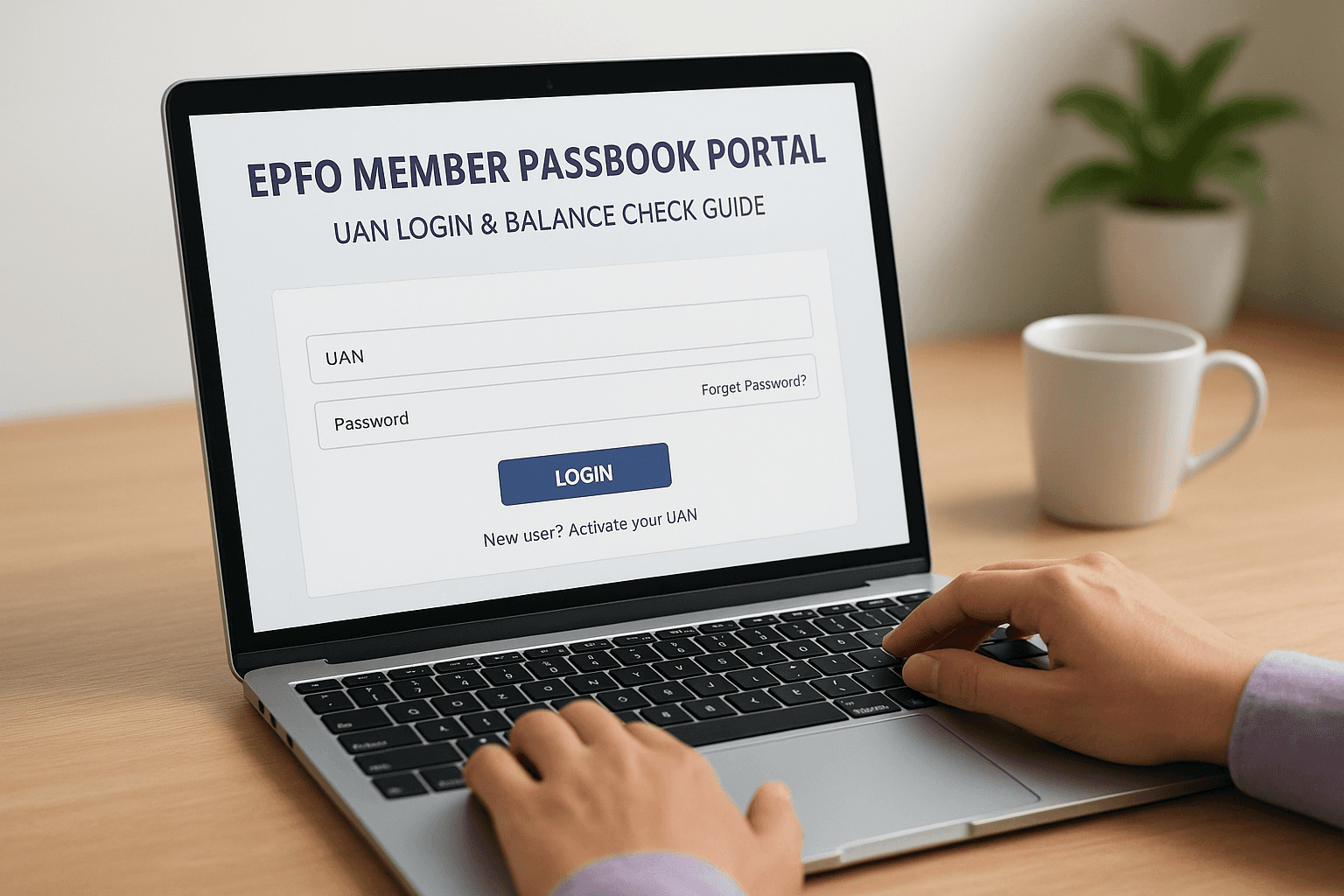
EPFO Member Passbook Portal: UAN Login & Balance Check Guide
Checking your EPF balance should not feel like solving a puzzle. You need to know how much you have saved, track your contributions, and download statements when applying for loans or tax filings. But every time you search for the EPFO portal, you end up on confusing pages with broken links or unclear instructions.
The EPFO member passbook portal gives you direct access to your EPF account. Log in with your UAN and password. Check your balance in seconds. Download your passbook as a PDF. No need to visit the EPFO office or call your employer for statements. The portal works 24/7 from any device with internet access.
This guide walks you through the entire process. You will learn how to find and activate your UAN, log in to the portal, view your passbook, check balance using SMS or missed call, and fix common login issues. By the end, you will have everything you need to manage your EPF account online without any hassle.
What the EPFO member passbook portal does
The EPFO member passbook portal gives you complete control over your EPF account from anywhere with internet access. You can check your current balance, view all past contributions, download statements in PDF format, and track withdrawals or transfers. The portal updates your passbook within six hours after you register your UAN, giving you real-time access to your retirement savings without depending on your employer or visiting an EPFO office.
Core features you can access
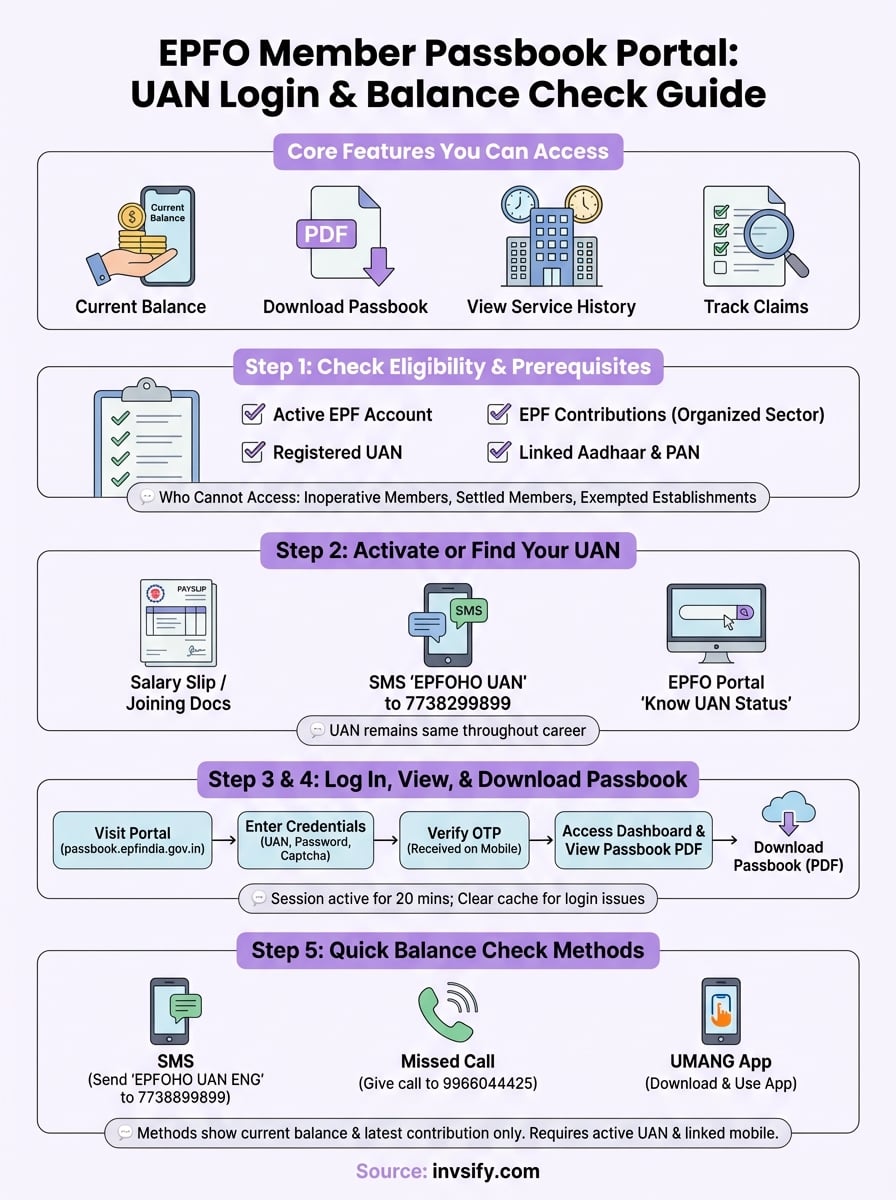
The portal offers five key services that simplify EPF management. You can view your complete profile summary, check your KYC information, and download your passbook with one click. Track the status of any claims you have filed, and use built-in calculators for EPF, EDLI, and pension estimates. Each feature saves you time and gives you transparency into how your contributions grow over time.
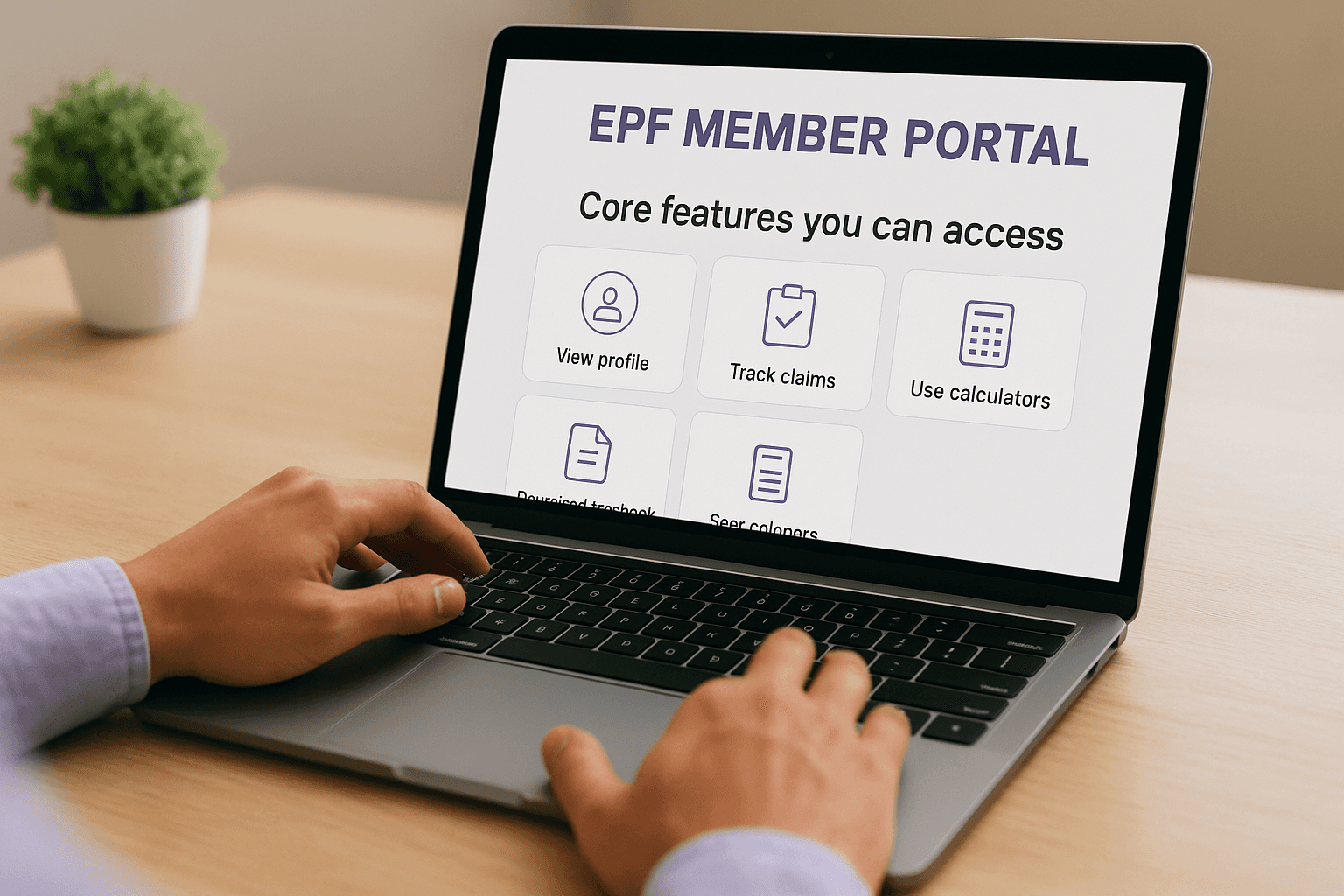
The portal eliminates paperwork by giving you instant digital access to every EPF transaction since you started contributing.
You can also see your service history across different employers, including total years of experience, start and end dates at each company, and any non-contributory periods. This complete record helps when you need to prove employment history for loan applications or visa documentation.
What information the passbook shows
Your passbook displays eight critical details about your EPF account. It shows your member ID, full name, date of birth, and current employer name. You see monthly contributions split between your share and your employer's share, along with any voluntary provident fund contributions you have made. The passbook lists any withdrawals, interest earned on your balance, and the total amount available in your account.
Each entry in your passbook includes the month and year of the transaction, though not the exact date. The opening balance at the start of each financial year appears at the top, followed by monthly additions and interest calculations. Your closing balance updates automatically as new contributions arrive, giving you an accurate picture of your retirement corpus at any moment.
Step 1. Check eligibility and prerequisites
Not everyone can log in to the EPFO member passbook portal immediately. You need an active EPF account and a registered UAN (Universal Account Number) to access your passbook online. The portal works only for employees whose accounts are maintained directly by EPFO, not for those working in exempted establishments where companies manage their own PF trusts.
Who can access the portal
You qualify for portal access if your employer deducts EPF contributions from your salary and deposits them with the EPFO. Both you and your employer must contribute 12% of your basic salary plus dearness allowance to your EPF account. Your account needs to be active, meaning you are currently employed or have not withdrawn your entire balance after leaving your job.
Active EPF members with a registered UAN get full portal access within six hours of activation.
Salaried employees in the organized sector make up the primary user base. If you have switched jobs, your previous EPF accounts should already be linked under one UAN. The portal consolidates all your past and present EPF accounts, giving you a complete view of your retirement savings across different employers.
Who cannot access the portal
Three categories of people cannot use the epfo member passbook portal to view their accounts online. Inoperative members with inactive accounts due to prolonged non-contribution cannot log in until they restart their contributions. Settled members who have withdrawn their entire EPF balance after retirement or resignation lose online access since their accounts are closed.
Exempted establishment employees face the biggest limitation. If you work for a company that runs its own EPF trust instead of depositing contributions with EPFO, you cannot access the member passbook portal. Your employer manages your PF account directly, so you need to contact your HR department for passbook statements. Large corporations like public sector undertakings often operate under this exemption.
What you need before starting
Gather three pieces of information before attempting to log in. You need your UAN, which is a 12-digit number your employer provides when you join. Your registered mobile number linked to your UAN receives OTPs for verification. Keep your PAN and Aadhaar details ready since the portal requires KYC verification for full access to all features.
Step 2. Activate or find your UAN
Your Universal Account Number (UAN) acts as the master key to access the epfo member passbook portal. This 12-digit number links all your EPF accounts from different employers under one identifier, making it possible to track your entire contribution history in a single place. Without an active UAN, you cannot log in to view or download your passbook, so getting this number and activating it becomes your first priority.
How to find your UAN if you already have it
Check your salary slip first since most employers print the UAN in the EPF deduction section. Look for a 12-digit number labeled as UAN or Universal Account Number near your PF account details. Your appointment letter or joining documents may also contain this information if your employer registered you with EPFO when you started working.
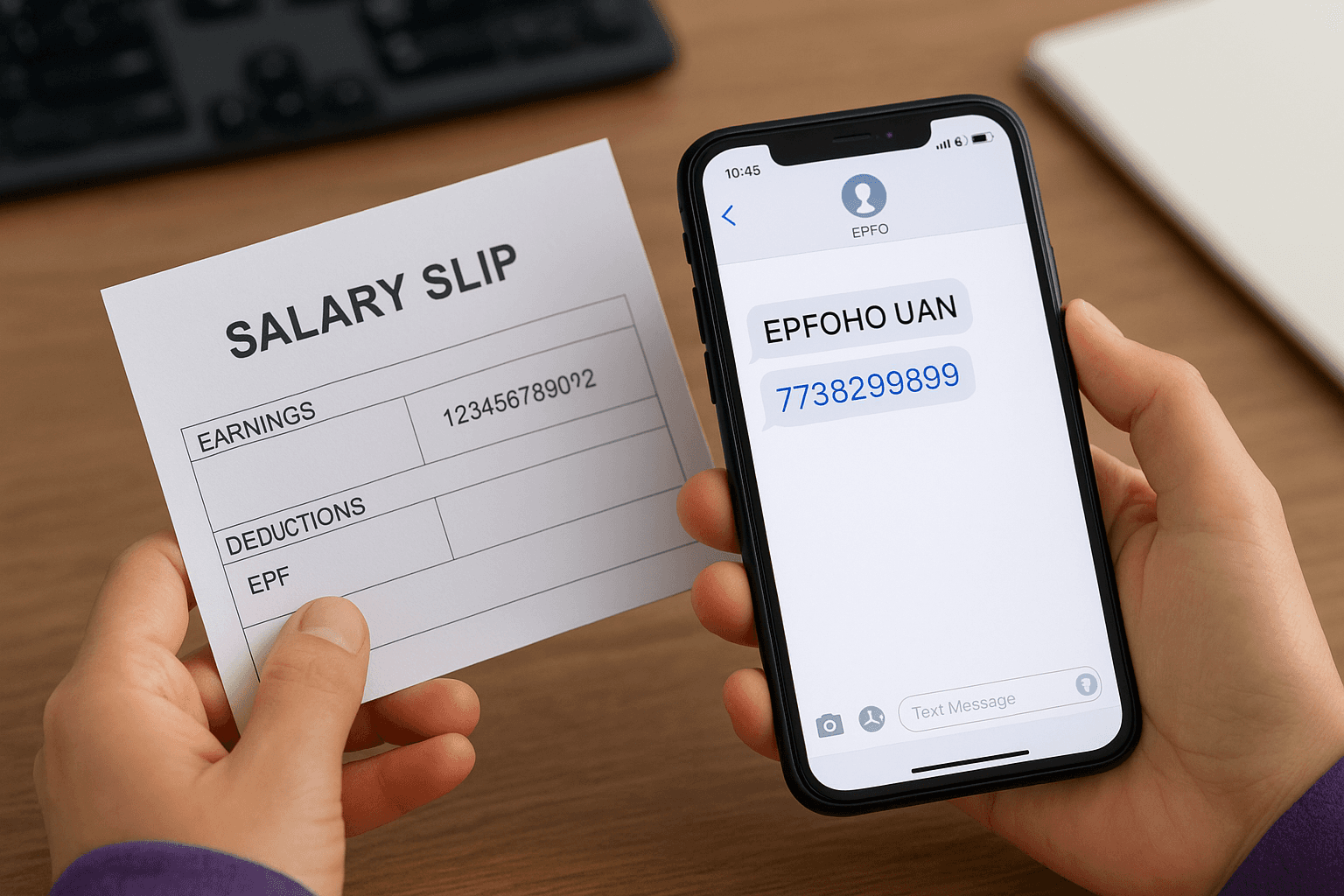
You can also find your UAN by sending an SMS from your registered mobile number. Type "EPFOHO UAN" and send it to 7738299899. The system replies with your UAN within minutes if your mobile number is already linked to your account. Another method involves visiting the EPFO portal and using the "Know Your UAN Status" option under Member Services, where you enter your PAN or Aadhaar to retrieve your number.
Your UAN remains the same throughout your career, even when you switch jobs or move to different cities.
How to activate your UAN if you have never logged in
Visit the EPFO Unified Member Portal and click on "Activate UAN" under the Important Links section. Enter your UAN, Member ID from your salary slip, Aadhaar number, full name as per Aadhaar, date of birth, and mobile number in the form that appears. Complete the captcha verification and click "Get Authorization PIN" to receive a six-digit code on your mobile.
Enter the authorization PIN within the time limit and click "Validate OTP and Activate UAN". The system sends your temporary password to your registered mobile number immediately after successful activation. You can now log in to the member portal using your UAN and this password. Change the temporary password to a strong, memorable one during your first login to secure your account.
How to get a new UAN if you don't have one
Contact your HR department or employer immediately if you do not have a UAN despite being an EPF member. Your employer must generate and share your UAN within a few days of your joining date. The company submits a digital request to EPFO through their establishment login, which triggers automatic UAN generation linked to your Aadhaar and PAN.
If your employer delays or refuses to provide your UAN, you can raise a grievance on the EPFO portal under the "Register Grievance" section. Select "UAN Related" as the category and explain that you have not received your UAN despite being an active EPF contributor. The regional EPFO office contacts your employer directly and resolves the issue within 30 days, ensuring you get access to your account and the member passbook portal.
Step 3. Log in to the member passbook portal
Logging in to the epfo member passbook portal requires your activated UAN and password. The process takes less than two minutes once you have your credentials ready. You will complete a two-factor authentication using an OTP sent to your registered mobile number, ensuring your account remains secure even if someone else knows your password.
Access the login page
Open your web browser and visit passbook.epfindia.gov.in, the official EPFO member passbook portal. You can also reach this page by going to the main EPFO website at epfindia.gov.in, clicking "For Employees" under the Our Services section, and selecting "Member Passbook" from the menu. Both methods take you to the same secure login screen where you enter your credentials.
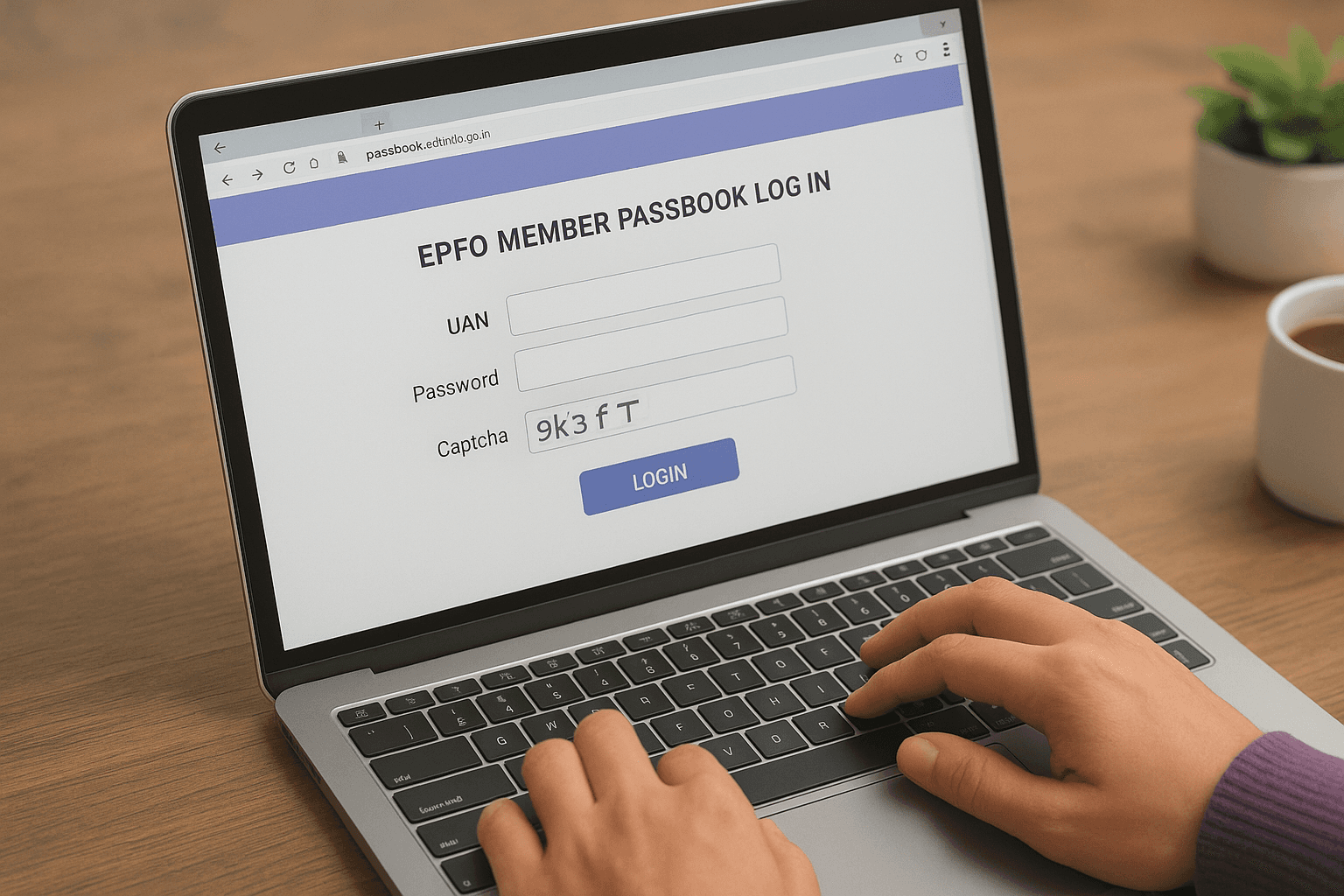
The login page displays three input fields: UAN, Password, and Captcha. Bookmark this page in your browser to save time during future visits. You can access the portal from any device, including smartphones, tablets, or computers, as long as you have an internet connection and a modern web browser like Chrome, Firefox, or Safari.
Enter your credentials and verify with OTP
Type your 12-digit UAN in the first field exactly as it appears on your salary slip or activation SMS. Enter the password you created during UAN activation or the one you set after resetting your credentials. Fill in the captcha code shown in the image, being careful to match uppercase and lowercase letters correctly.
Click the "Login" button to proceed to the OTP verification screen. The system sends a six-digit code to your registered mobile number within seconds. Enter this OTP in the verification field and click "Validate" to complete the login process. The OTP expires after 10 minutes, so enter it promptly to avoid requesting a new code.
Your login session remains active for 20 minutes of inactivity before automatically logging you out for security.
Troubleshoot common login problems
If you see an "Invalid UAN or Password" error, verify that your UAN is activated by checking your SMS records for the activation confirmation. Use the "Forgot Password" link on the login page to reset your password if you cannot remember it. The system requires you to enter your UAN, personal details, and registered mobile number to generate a new password.
Contact your employer's HR department if you do not receive the OTP despite multiple attempts. Your mobile number may not be updated in the EPFO database. You can also call the EPFO helpline at 1800-118-005 for technical assistance during business hours or raise a ticket through the grievance portal for delayed resolution of login issues.
Step 4. View and download your EPF passbook
After successful login, the epfo member passbook portal displays your dashboard with several menu options across the top. You can now access your complete EPF transaction history, check your current balance, and download official statements for loan applications, visa processing, or tax filing purposes. The entire process from viewing to downloading your passbook takes less than one minute once you navigate to the correct section.
Navigate to your passbook section
Click the "Passbook" tab in the main navigation menu at the top of your dashboard. The system displays a list of all Member IDs linked to your UAN, showing your current employer and any previous employers where you contributed to EPF. Each Member ID appears with the establishment name, making it easy to identify which account you want to view.
Your most recent Member ID appears at the top of the list by default. If you have worked for multiple companies, you will see separate entries for each establishment. The portal consolidates all these accounts under your single UAN, giving you access to your complete EPF history across different jobs without switching between multiple logins.
Select your EPF account and view details
Click on "View Passbook" next to the Member ID you want to check. The system loads your passbook in a new browser tab, displaying it as a PDF document that you can scroll through immediately. Your passbook shows the opening balance, monthly contributions from both you and your employer, interest earned, any withdrawals made, and your current closing balance.
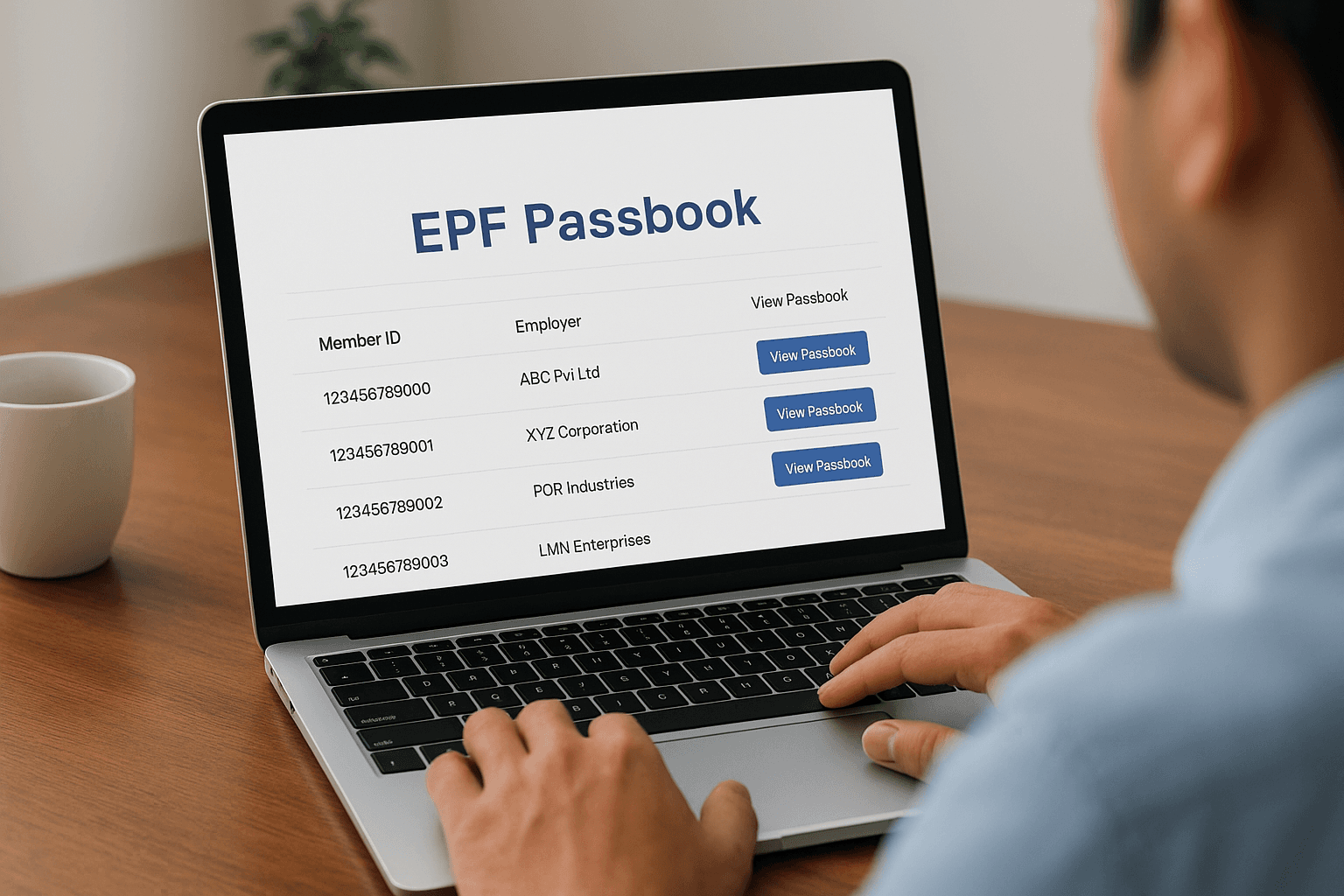
Each transaction appears with the month and year but not the specific date. You see separate columns for your employee contribution, employer contribution, pension contribution, and voluntary provident fund contributions if you made any. The passbook updates automatically whenever your employer deposits new contributions, typically within three to five days after salary processing each month.
Your passbook PDF includes your complete transaction history since you started contributing under that particular Member ID.
Download your passbook in PDF format
Look for the "Download Passbook" button at the top or bottom of the PDF viewer. Click this button to save the file directly to your device. The downloaded file carries a standard name format like "Passbook_UAN_MemberID.pdf" which you can rename for easier identification in your file system.
The downloaded PDF remains valid for official purposes without requiring any digital signature or stamp from EPFO. Banks, visa offices, and other institutions accept this self-service passbook as authentic proof of your EPF contributions and balance. You can download your passbook multiple times throughout the year at no cost, making it easy to maintain updated records for financial planning or documentation requirements.
Store the downloaded file in a secure location on your device or cloud storage. Print copies if you need physical documents for submission to authorities. The passbook shows no watermark or expiry date, but some institutions may request statements generated within the last three months, so download fresh copies when needed for official submissions.
Step 5. Check balance by SMS missed call and app
You can check your EPF balance without logging in to the epfo member passbook portal by using three quick alternative methods. Send an SMS, give a missed call, or use the UMANG mobile app to get your balance information within seconds. These methods work best when you need a quick balance check while traveling or when you cannot access a computer, though they show only your current balance and latest contribution details, not your complete transaction history.
Check balance using SMS
Type "EPFOHO UAN ENG" and send it to 7738899899 from your registered mobile number. Replace "ENG" with the first three letters of your preferred language if you want the response in Hindi (HIN), Punjabi (PUN), Gujarati (GUJ), Marathi (MAR), Kannada (KAN), Telugu (TEL), Tamil (TAM), Malayalam (MAL), or Bengali (BEN). The system replies within minutes with your current balance and last contribution details.
Your SMS must come from the mobile number you registered with your UAN during activation. The service works across all major mobile networks in India at standard SMS rates. You can send this message multiple times throughout the month to track updates after your employer deposits contributions.
SMS balance checks give you instant information without internet access or login credentials.
Here are example messages for different languages:
English: EPFOHO UAN ENG
Hindi: EPFOHO UAN HIN
Telugu: EPFOHO UAN TEL
Tamil: EPFOHO UAN TAM
Check balance using missed call
Give a missed call to 9966044425 from your registered mobile number. Hang up after one or two rings. The system disconnects your call automatically and sends an SMS to your phone within two minutes containing your member ID, current balance, and last contribution date.
This method requires your UAN to be active and your mobile number to be linked with your account. You also need your UAN connected to your Aadhaar, PAN, and bank account for the service to work properly. The missed call facility operates 24 hours a day without any charges beyond standard call rates.
Check balance using UMANG app
Download the UMANG app from Google Play Store or Apple App Store and install it on your smartphone. Open the app and search for "EPFO" in the All Services section. Tap on "Employee Centric Services" followed by "View Passbook" to access your balance.
Enter your UAN in the login field. The system sends an OTP to your registered mobile number. Type this OTP in the verification screen to proceed. The app displays all your Member IDs linked to your UAN. Select the account you want to check and view your complete passbook directly in the app without opening a browser.
The UMANG app also lets you download your passbook, check claim status, and access other EPFO services from one place. You can use the app on both Android and iOS devices with internet connectivity.
Step 6. Read your passbook and fix common issues
Your downloaded passbook contains eight key columns that track every transaction in your EPF account. Understanding these columns helps you verify that your employer deposits contributions correctly and that interest calculations match EPFO's current rates. Most users overlook small errors that compound over time, costing them thousands in retirement savings, so learning to read your passbook accurately protects your financial future.
Understanding passbook entries and columns
The first column shows your Member ID followed by your personal details including name, date of birth, and employer information. Each transaction row displays the month and year, starting with your opening balance at the beginning of the financial year. Your employee contribution appears in one column, showing the 12% deducted from your basic salary plus dearness allowance.
Your employer's contribution splits between two columns. The employer's EPF contribution shows the amount deposited to your EPF account, while the pension contribution displays the 8.33% transferred to the Employee Pension Scheme (capped at Rs. 1,250 per month for salaries above Rs. 15,000). Any Voluntary Provident Fund (VPF) contributions you make appear in a separate column, followed by interest earned and withdrawals if you made any.
Your closing balance updates monthly after your employer processes salary and deposits contributions to EPFO.
Calculate your expected monthly contribution by multiplying your basic salary plus dearness allowance by 0.12. Compare this figure with the employee contribution column. If you see discrepancies for three consecutive months, raise a grievance through the epfo member passbook portal under the Register Grievance section or contact your HR department immediately.
Common login and access issues
Your browser cache causes most login failures on the EPFO portal. Clear your browser's cache and cookies by pressing Ctrl+Shift+Delete (or Cmd+Shift+Delete on Mac), selecting "All time" as the time range, checking both "Cookies" and "Cached images," and clicking Clear Data. Retry logging in after clearing your cache, using the exact UAN and password combination you created during activation.
Some users see a "Session Expired" message after logging in successfully. This happens when you keep the portal open for more than 20 minutes without any activity. Log out completely, close all browser tabs with EPFO pages, and start fresh with a new login session to resolve this issue.
If the portal shows "Service temporarily unavailable" during business hours, EPFO is performing system maintenance. The portal typically goes down between 2:00 AM and 4:00 AM on Sundays for weekly updates. Wait two hours and try again, or use the SMS and missed call services to check your balance during maintenance windows.
Transaction and balance discrepancies
Your passbook may not show contributions from the current month immediately after salary processing. EPFO updates accounts three to five days after employers submit their monthly returns, so a delay of up to one week is normal. Check again after seven business days if you still do not see the latest deposit.
Missing contributions from previous months require immediate action. Download your salary slips for the affected months and verify that your employer deducted EPF from your salary. File a grievance on the EPFO portal with scanned copies of your salary slips as proof. The regional EPFO office investigates and recovers unpaid contributions from your employer within 30 to 45 days.
Interest calculations that seem incorrect need verification against EPFO's declared rates for that financial year. EPFO credits interest annually at the end of March, not monthly, so you will see one large interest entry per year in your passbook. The current rate stands at 8.15% per annum for 2025-26. Multiply your average balance by this percentage and divide by 100 to calculate your expected annual interest.
Keep your EPF passbook close
Your EPF passbook gives you complete visibility into your retirement savings at any moment. Download it every quarter to verify contributions, track interest earnings, and catch employer deposit errors before they grow into larger problems. Keep digital copies organized by date in your cloud storage and maintain printed versions for loan applications, visa processing, or tax documentation that requires physical submission.
The epfo member passbook portal eliminates the hassle of chasing HR departments or visiting EPFO offices for balance verification. Check your account weekly during the first three months at a new job to confirm your employer deposits contributions correctly from day one.
Your EPF forms just one part of your complete financial picture. While you monitor your retirement corpus, consider optimizing your current investments and tax-saving strategies with professional guidance. Get personalized wealth advice from Invsify, a SEBI-registered investment advisor that uses AI to help you grow and protect your money without hidden fees or conflicts of interest.